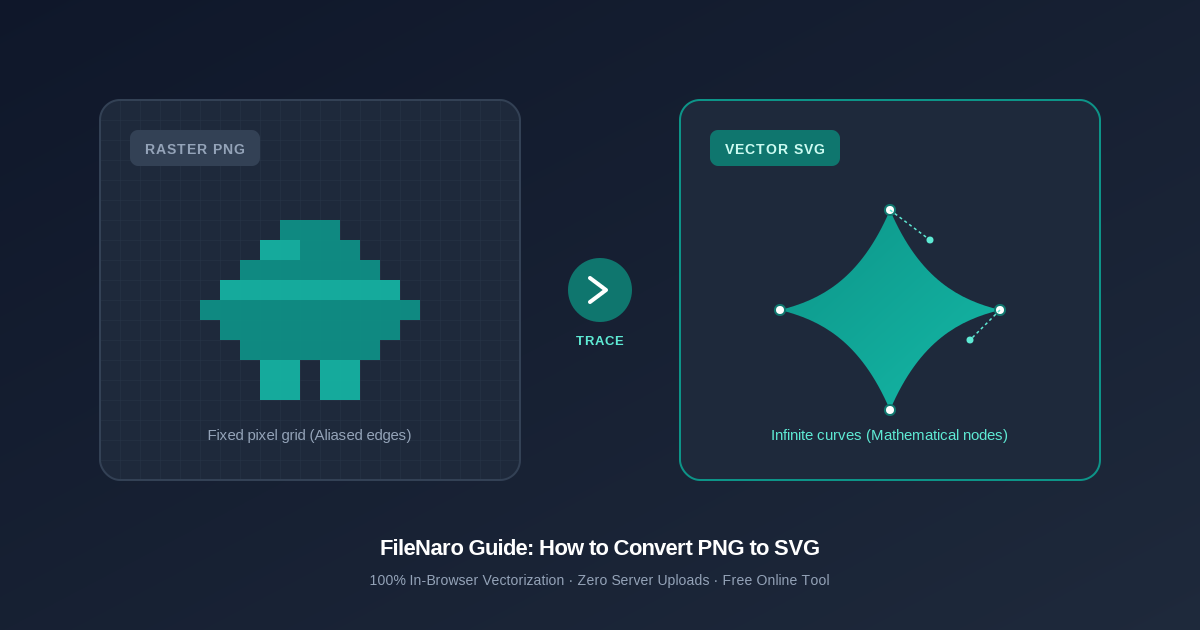
Converting a raster image like a PNG into a scalable vector graphic (SVG) is one of the most common tasks in modern web design, digital branding, and print production. However, moving from fixed pixel grids to mathematical geometry is fundamentally different from standard image format conversions like JPG to PNG.
In this comprehensive guide, we explain how vectorization algorithms work under the hood, provide step-by-step instructions for converting your PNG files directly in your web browser, break down color tracing and transparency handling, and review real-world limitations so you achieve crisp, production-grade vector results every time.
Raster (PNG) vs. Vector (SVG): Core Architectural Differences
To understand why and how vectorization works, you must first understand the fundamental architectural divergence between raster bitmaps and vector coordinate markup:
Raster Image (Bitmap)
A PNG (Portable Network Graphics) file consists of a rigid two-dimensional grid of individual color units called pixels. Each pixel stores specific RGBA (Red, Green, Blue, Alpha) values.
- •Resolution-dependent: Zooming in reveals visible pixelation, stair-stepping (aliasing), and blurriness.
- •File size: Scales directly with pixel dimensions (width × height), regardless of image complexity.
- •Styling: Individual graphical shapes cannot be styled or animated using CSS or JavaScript.
Vector Graphic (XML Markup)
An SVG (Scalable Vector Graphics) file is an XML-based text document containing mathematical formulas describing points, lines, curves, polygons, and fills.
- •Infinitely scalable: Renders with razor-sharp fidelity at 16px favicon size or on a 4K billboard with zero quality loss.
- •Lightweight: For logos, icons, and illustrations, vector markup is frequently 70% to 90% smaller than high-DPI raster images.
- •DOM-interactive: Shapes can be styled, recolored with CSS (
fill: #0d9488), and manipulated via JavaScript.
| Attribute | PNG (Raster) | SVG (Vector) |
|---|---|---|
| Data Representation | Fixed pixel grid (RGBA matrix) | Mathematical paths, shapes & coordinates |
| Scalability | Fixed resolution; degrades when enlarged | Infinite scaling without quality loss |
| Transparency Support | 8-bit alpha channel transparency | Vector clipping paths & opacity attributes |
| Best Suited For | Photographs, complex gradients, screenshots | Logos, icons, typography, illustrations, blueprints |
| Editability | Pixel-editing software (Photoshop, GIMP) | Vector editors (Illustrator, Inkscape, Figma) & text editors |
How PNG-to-SVG Vectorization Actually Works
When converting JPG to PNG or PNG to WebP, the computer merely re-encodes pixel values using a different compression scheme. But when converting PNG to SVG, the engine must perform algorithmic image tracing. It analyzes raw pixel clusters and reconstructs them into smooth mathematical curves.
The vectorization pipeline inside FileNaro executes four sequential stages directly in your web browser:
Color Quantization & Palette Reduction
A typical PNG photo or anti-aliased icon may contain thousands of subtle pixel color gradations. The vectorization engine reduces this spectrum to a manageable set of quantized color layers (e.g. 16 to 64 colors) so distinct regions can be isolated into separate geometric shapes.
Edge & Boundary Detection
Next, the algorithm traces contrast boundaries across the pixel grid, identifying where one color region stops and another begins. This creates rough, step-like pixel coordinate loops around every graphical element.
Bézier Curve Fitting & Path Simplification
Rather than preserving pixelated stair-step edges, curve-fitting algorithms (such as Potrace or ImageTracer) smooth the perimeter into continuous cubic Bézier curves (C commands in SVG) and straight segments (L commands), discarding redundant node points while preserving geometric fidelity.
SVG Markup Generation & Layer Sorting
Finally, each traced shape is assigned its corresponding fill color and stacked from background to foreground inside standard <path> elements wrapped by an SVG root node with appropriate viewBox and dimension attributes.
Step-by-Step: Converting PNG to SVG with FileNaro
FileNaro offers a dedicated, client-side PNG to SVG Converter that requires no software installation, no account creation, and zero server uploads. Here is the exact workflow:
- 1Open the PNG to SVG Tool and Select Your File
Navigate to FileNaro PNG to SVG Converter. Click Upload PNG to choose a graphic from your computer or mobile device, or drag and drop your file directly into the upload area.
- 2In-Browser Vectorization Execution
FileNaro instantly begins tracing your image on your local CPU. Your original graphic never leaves your machine, ensuring 100% confidential data privacy for proprietary company trademarks, client branding, and internal diagrams.
- 3Interactive Side-by-Side Preview
Inspect the vector output alongside your original bitmap. Zoom into sharp geometric edges to confirm that curves, text characters, and silhouette contours were traced cleanly.
- 4Download Scalable SVG
Click Download SVG to save your newly compiled vector graphic. The output file is a clean, standard XML document ready to be used in web HTML (
<img src="logo.svg">), Figma, Adobe Illustrator, Inkscape, or laser cutting and vinyl plotting machines.
Ready to vectorize your graphics?
Convert logos, icons, and illustrations into crisp vector SVG files in your browser.
Ideal Use Cases: When to Convert and When Not To
Algorithmic vectorization is exceptionally powerful, but it is not a universal magic wand for every raster image. Understanding which graphics vectorize well prevents disappointment and suboptimal file sizes.
Ideal Candidates for SVG Vectorization
- •Logos & Brand Marks: Flat color emblems, monograms, and brand seals that must scale from 16px navigation headers to 10-foot promotional banners.
- •UI Icons & Glyph Symbols: User interface buttons, navigation arrows, social media badges, and dashboard indicators.
- •Line Art, Schematics & Silhouettes: Black-and-white architectural line sketches, technical diagrams, and stencil cutouts.
- •Typography & Lettering: Clean rasterized words and typographic slogans that require crisp rendering on high-DPI (Retina) screens.
Not Recommended for Vectorization
- •Real-World Photographs: Portraits, landscape photos, and camera shots contain millions of subtle skin and lighting gradients that create hundreds of thousands of polygon nodes.
- •Continuous Tone Gradients: Subtle blurred radial backdrops and photo glows translate into stepped banding rather than smooth vectors.
- •Heavy Grain & Noise: Scanned parchment or film grain textures create massive path bloat, often producing SVG files exceeding 10MB that freeze mobile browsers.
Transparency, Color Tracing, and Detail Control
Unlike older vector converters that flatten transparent alpha channels onto stark white rectangles, modern browser-based engines treat transparency as an active clipping boundary:
Preserving Background Transparency
When you supply a PNG graphic with an alpha channel (such as a logo with an empty background), the vectorizer skips transparent pixels (alpha = 0). The resulting SVG contains transparent space around your vector shapes, allowing the graphic to sit cleanly on dark, light, or patterned website backgrounds.
Managing Color Quantization Steps
Vector tracing organizes graphics into color layers. A simple two-color black-and-white icon generates only one or two vector paths. A vibrant multi-color mascot graphic generates several layered paths corresponding to each quantized color swatch.
Optimization Tips for Cleaner SVG Output
To achieve the smallest possible file sizes and the cleanest vector outlines, follow these practical pre-processing tips:
If your PNG has faint JPEG compression artifacts or faint stray pixels around borders, crop or erase them first. Every stray speck becomes an unnecessary vector path.
While vector output scales infinitely, the tracing algorithm needs enough initial pixel clarity to discern corners from curves. A 64px thumbnail will produce rounded, melted corners; a 500px to 1000px source yields crisp, sharp contours.
Open the downloaded .svg file in a text editor like VS Code. You can directly embed the <svg> element inline in React, Next.js, or HTML to avoid extra network requests and style elements with CSS.
Frequently Asked Questions
Is PNG to SVG conversion lossless?
No. Vector tracing is an algorithmic approximation of pixel data using mathematical curves. For flat graphics, logos, and icons, the result is visually identical and infinitely superior in scalability. However, converting complex photo textures into vectors inherently involves simplifying color transitions.
Can I convert photos into clean vector SVGs?
Photos can technically be vectorized, but the resulting SVG will contain tens of thousands of complex overlapping polygons. This causes the file size to balloon (often 5MB to 10MB+) and creates severe rendering lag in browsers. Photos should remain in compressed raster formats like JPG or WebP.
Are my PNG files uploaded to FileNaro servers?
No. FileNaro processes vector tracing 100% locally inside your web browser session using client-side JavaScript and Canvas rendering. Zero image bytes leave your computer or phone.
Can I edit the generated SVG in Illustrator or Figma?
Yes. The generated SVG is standard W3C-compliant XML markup. You can open it in Adobe Illustrator, Figma, Inkscape, CorelDRAW, or any vector design software to tweak anchor points, adjust fills, or delete unwanted path nodes.
What is the maximum PNG file size supported?
Because all vectorization takes place on your local device, FileNaro comfortably handles PNG files up to 20MB. For optimal vectorization speed, graphics between 500px and 2500px produce the best balance of speed and edge sharpness.